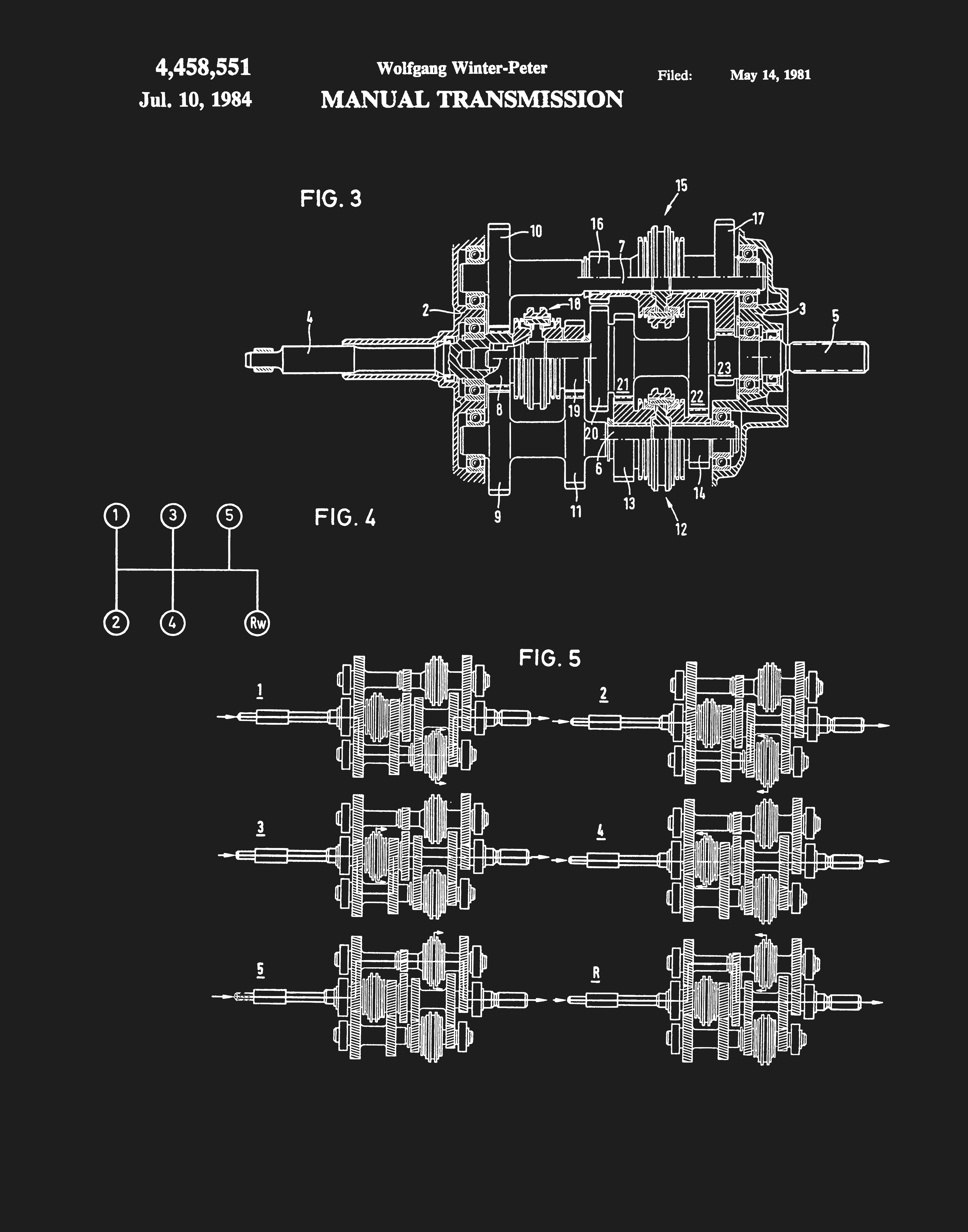
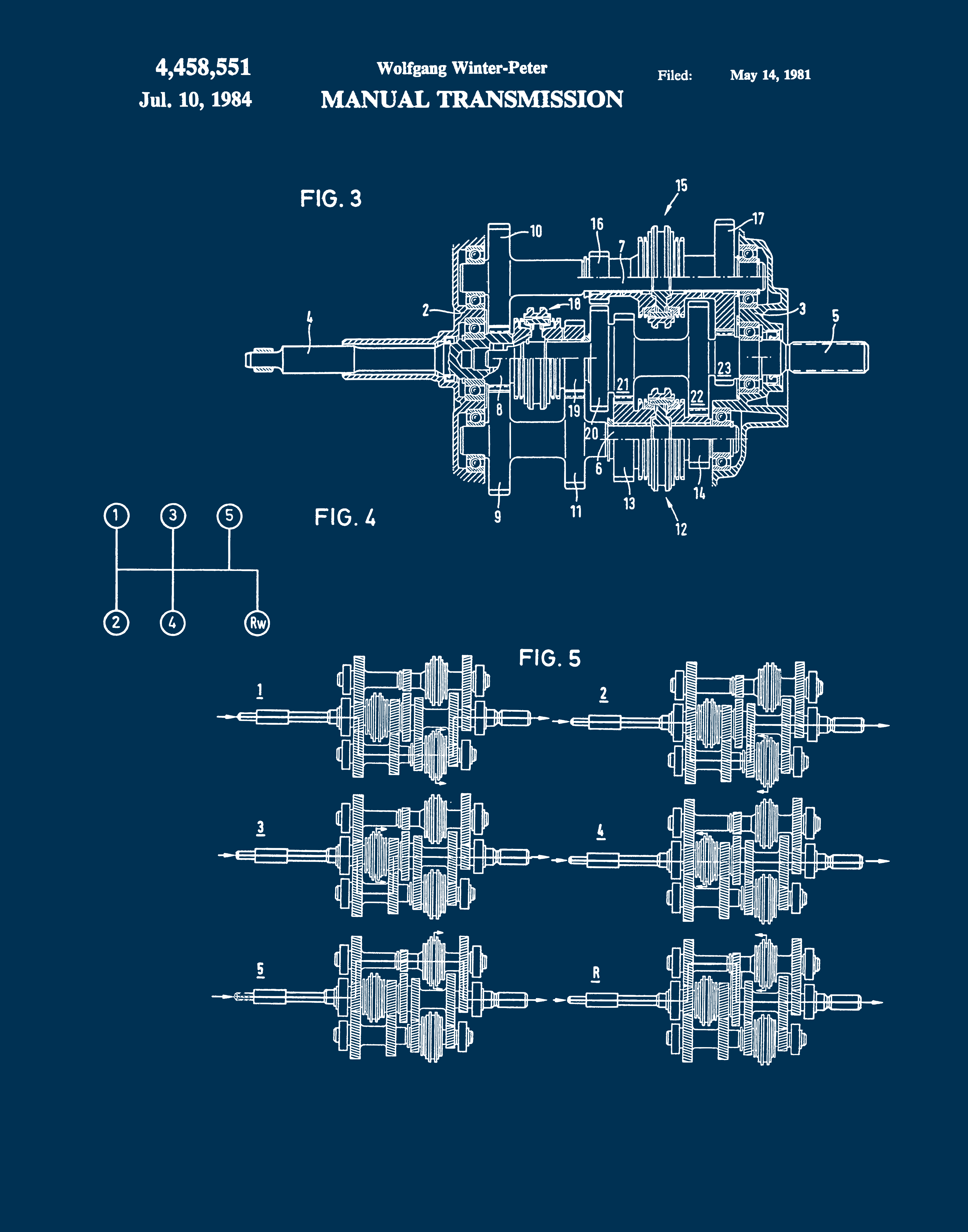
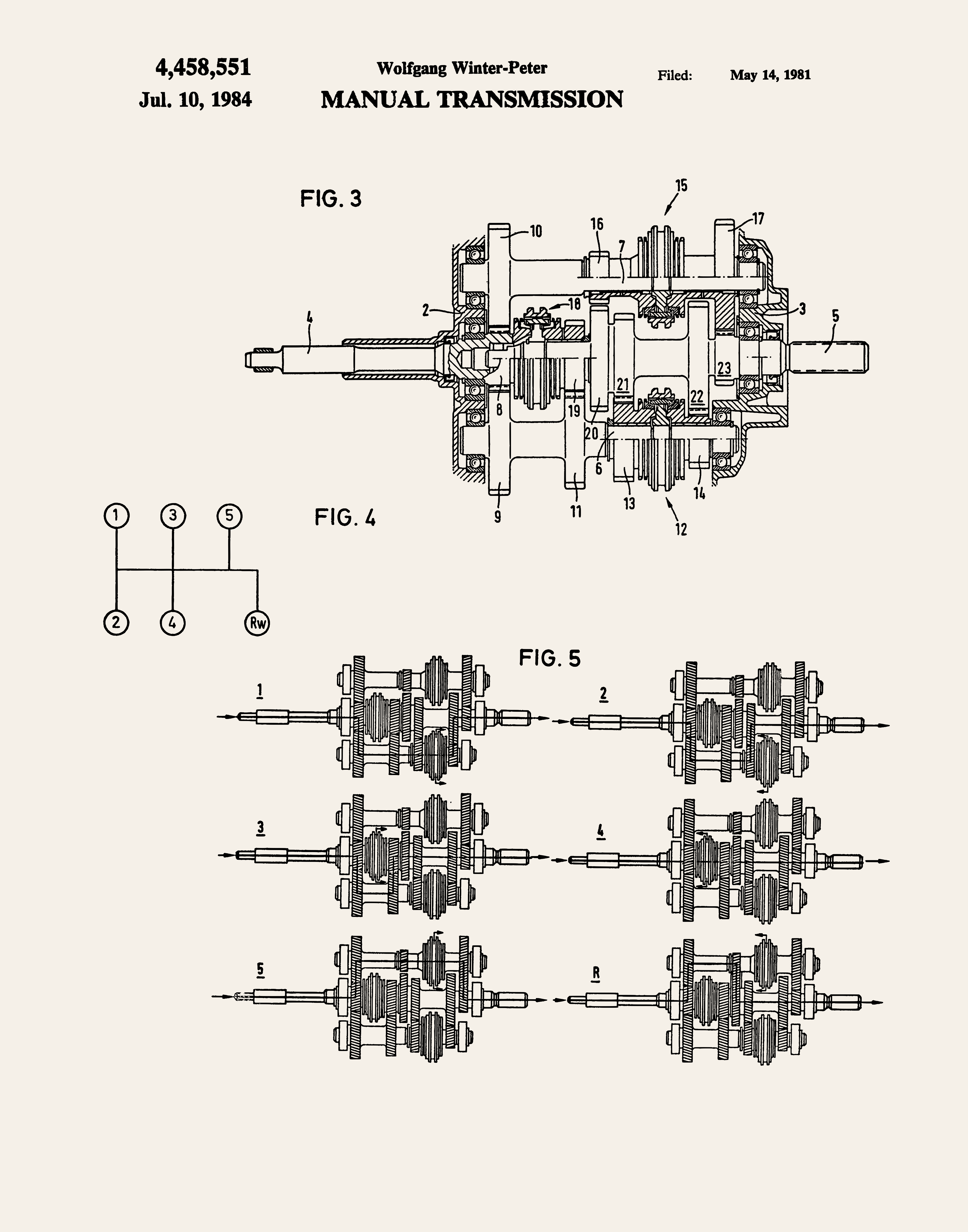
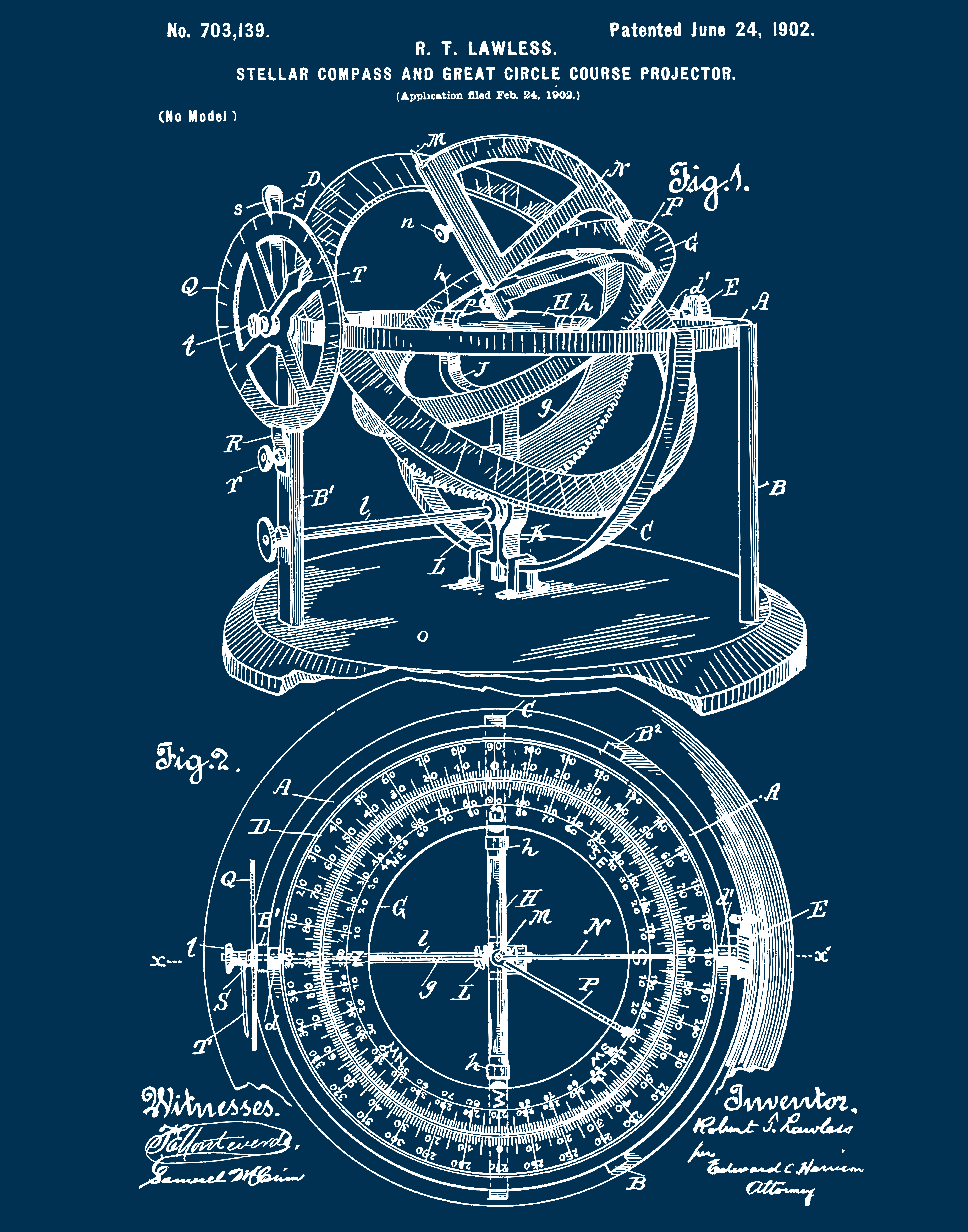
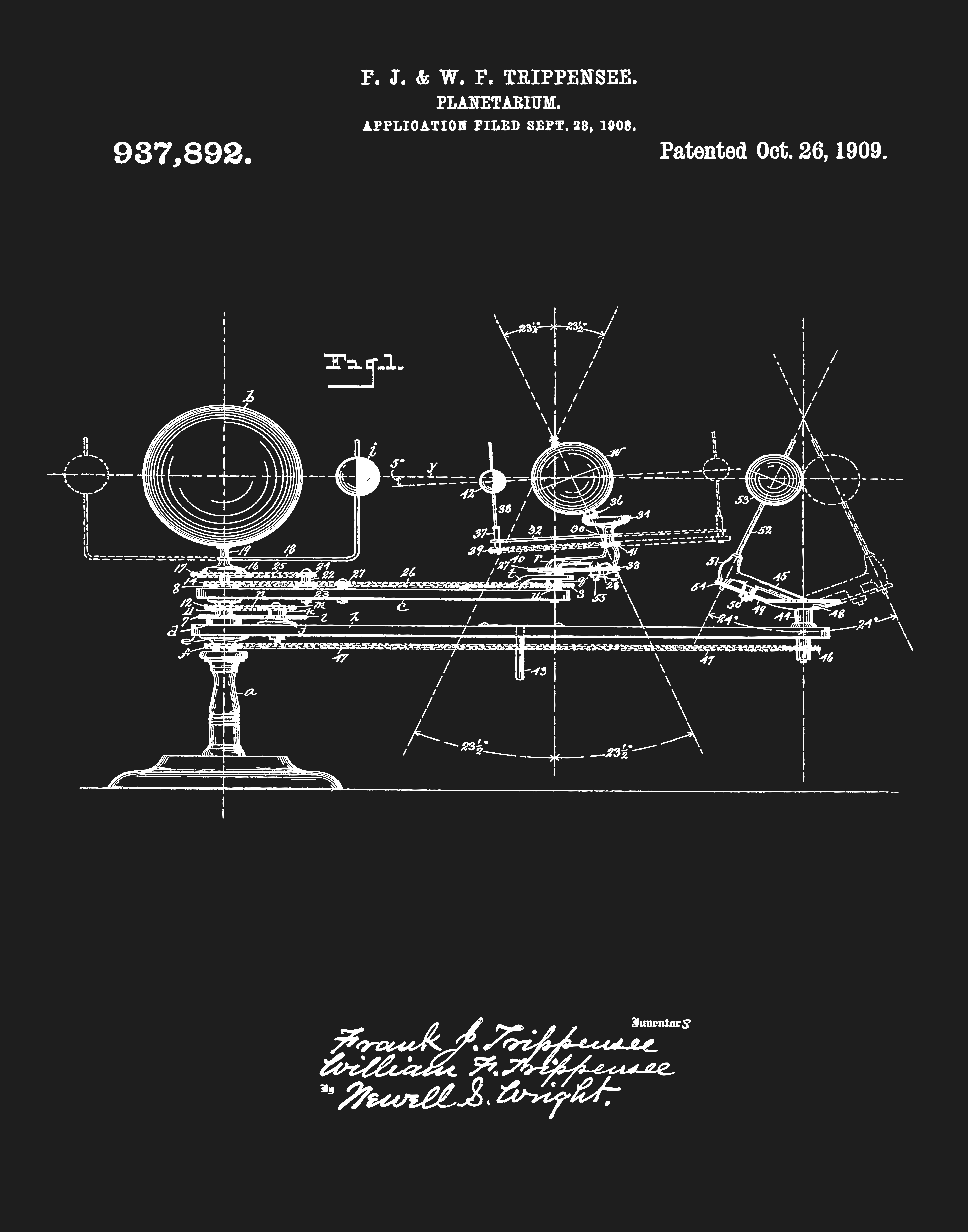
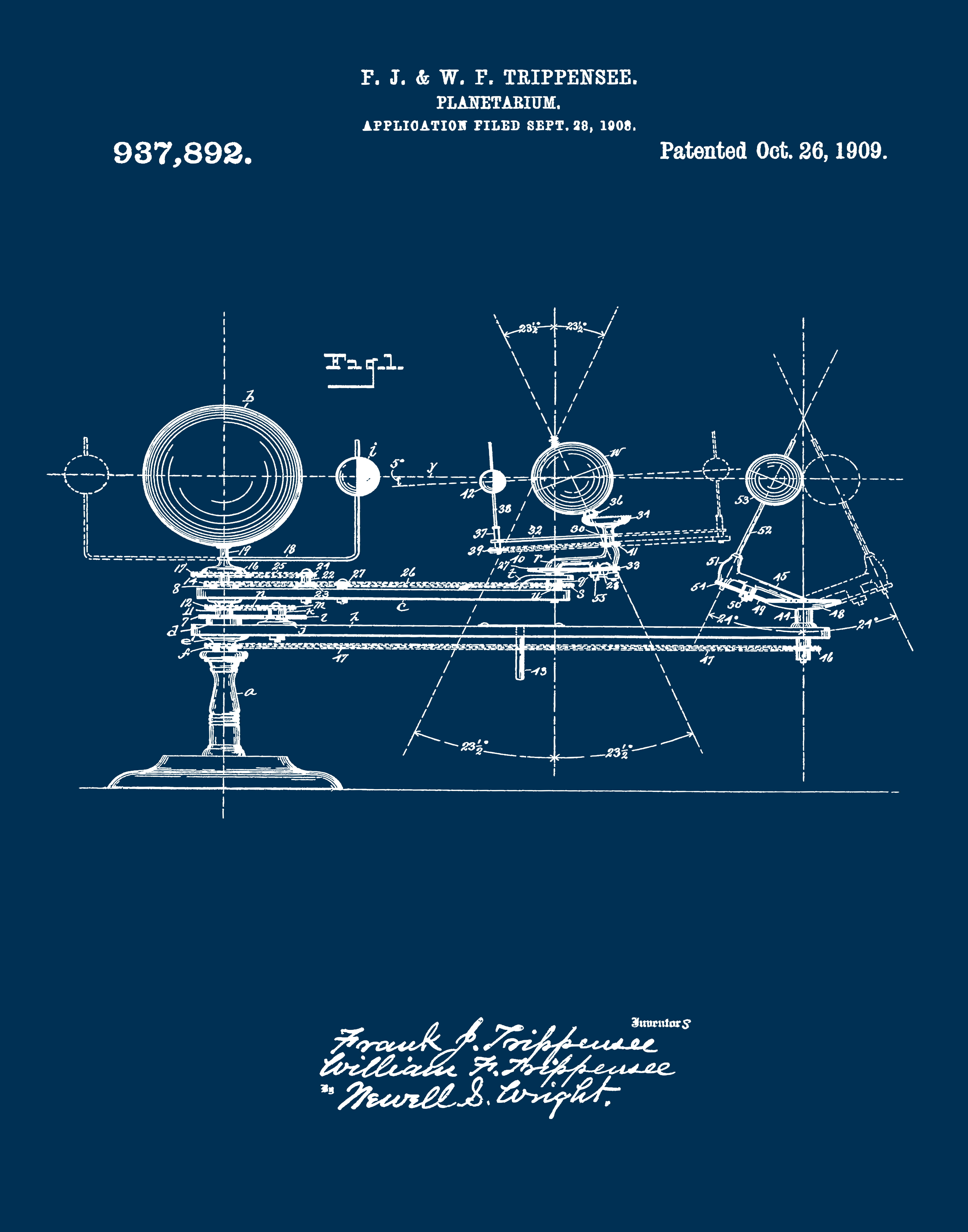
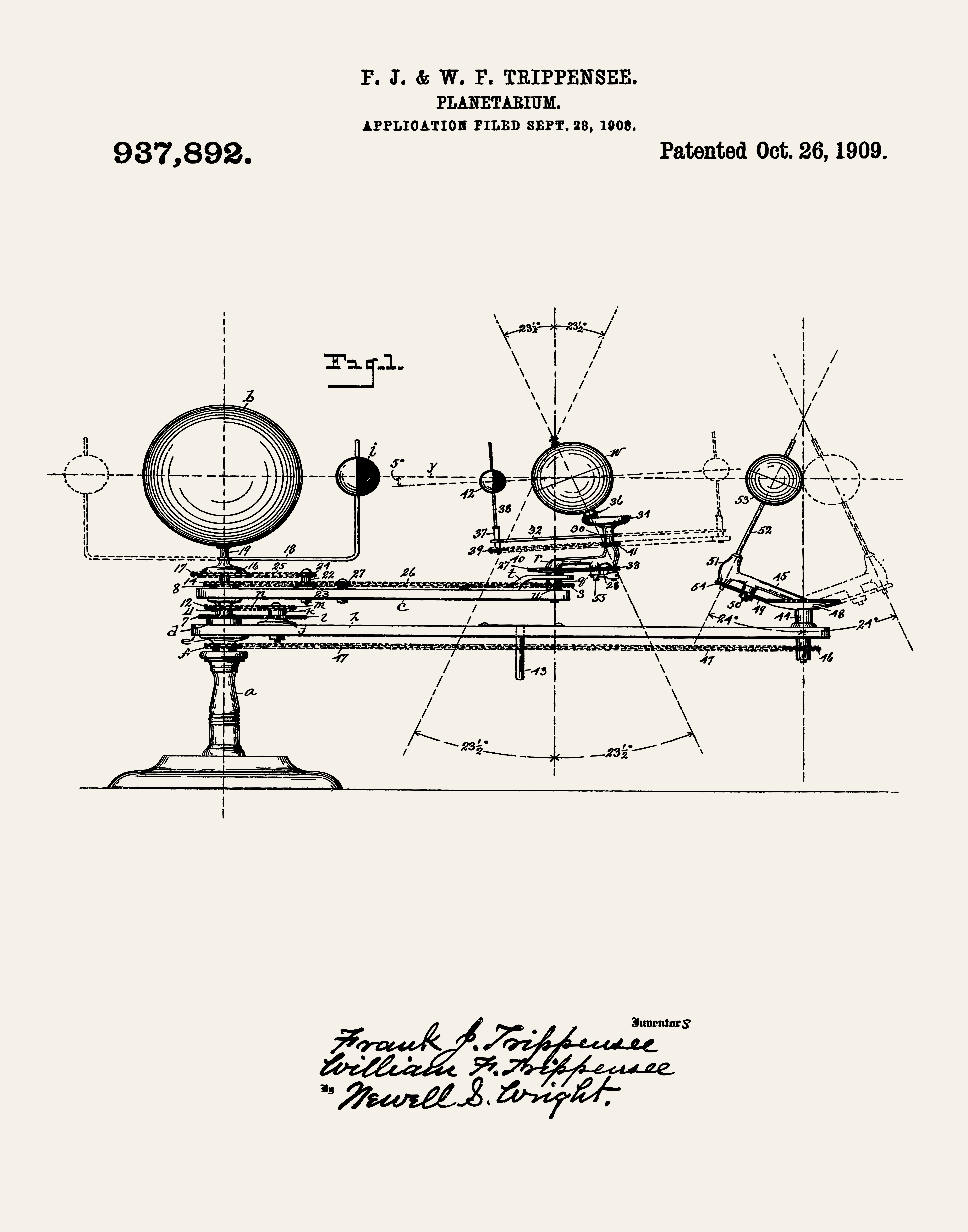
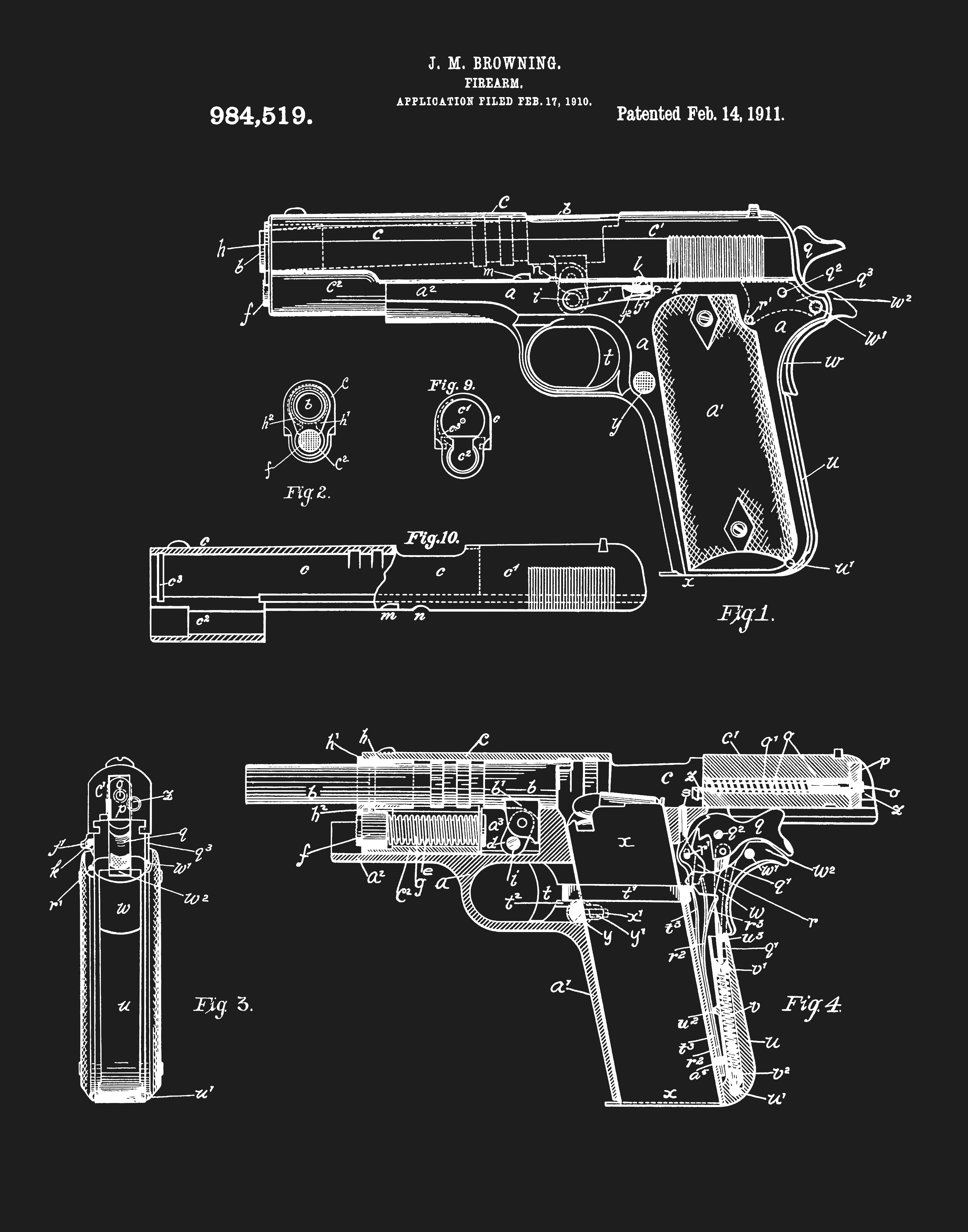
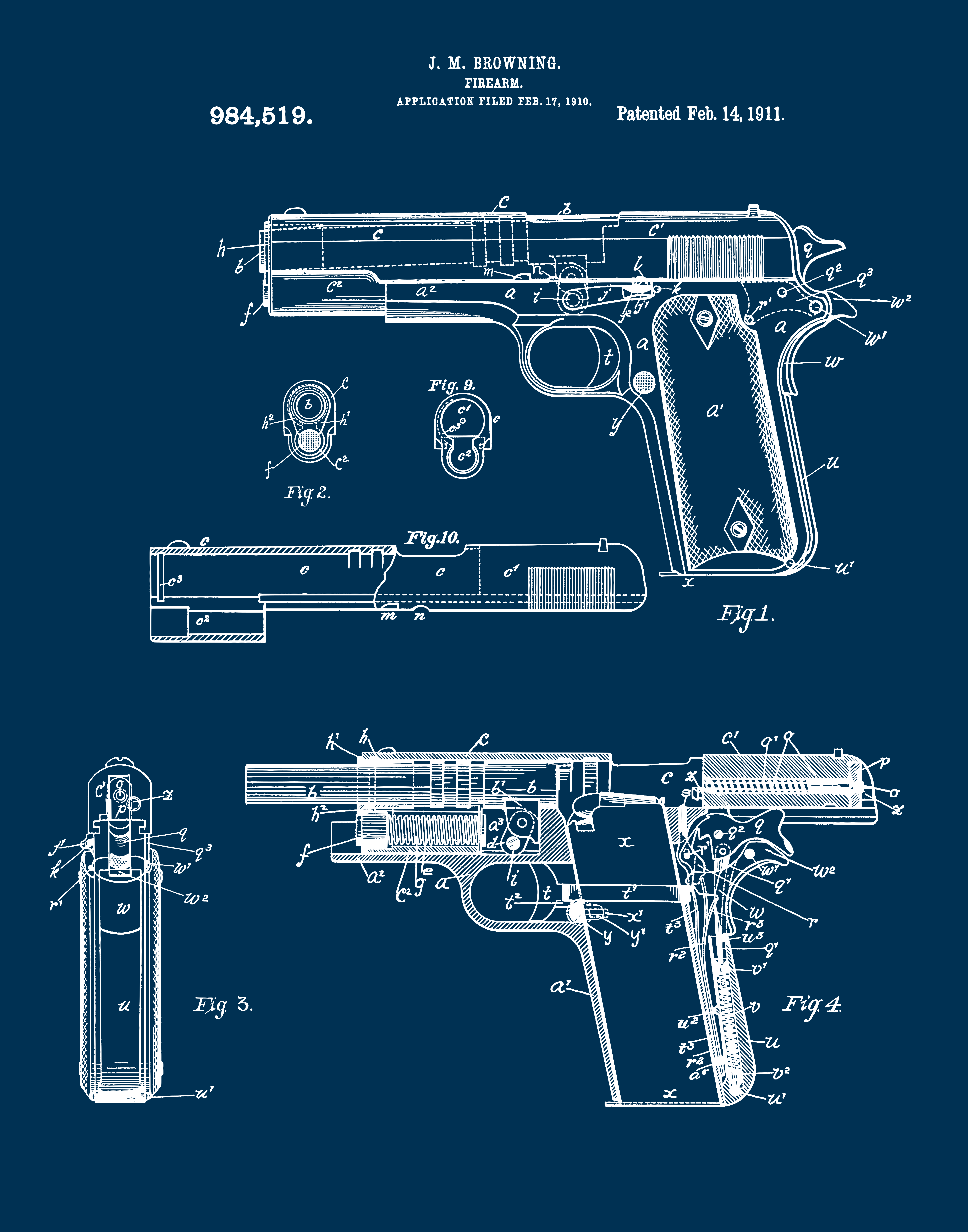
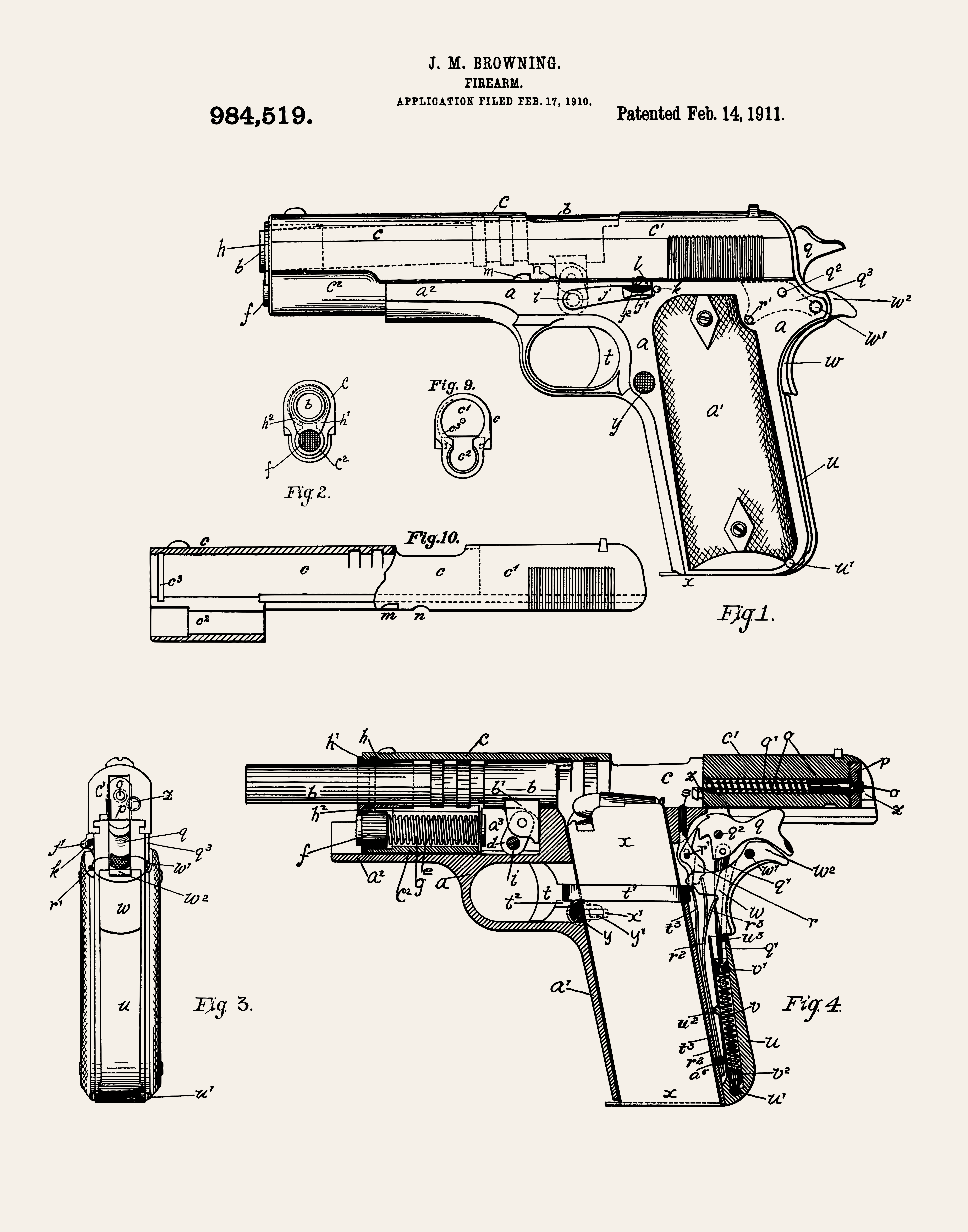
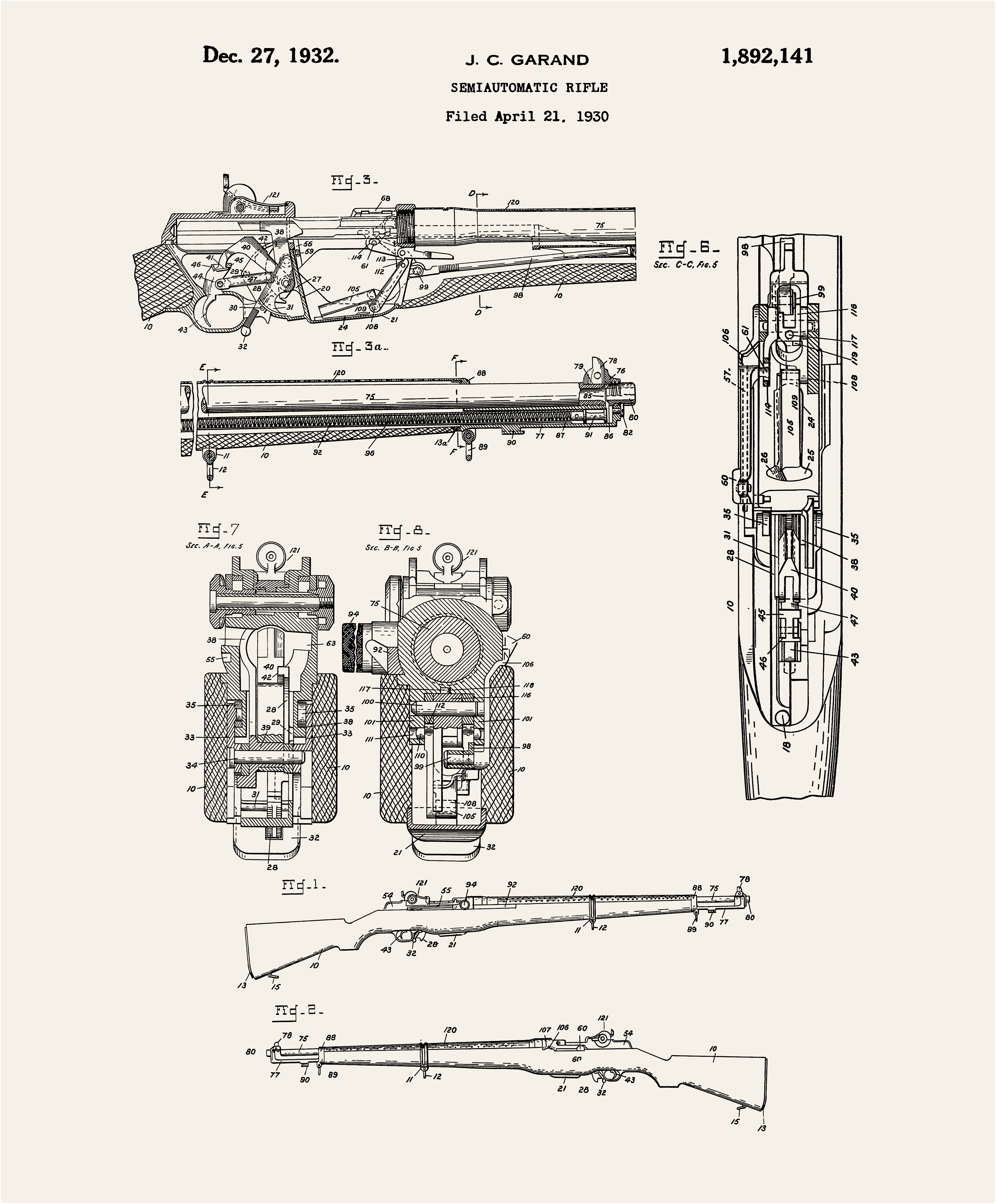
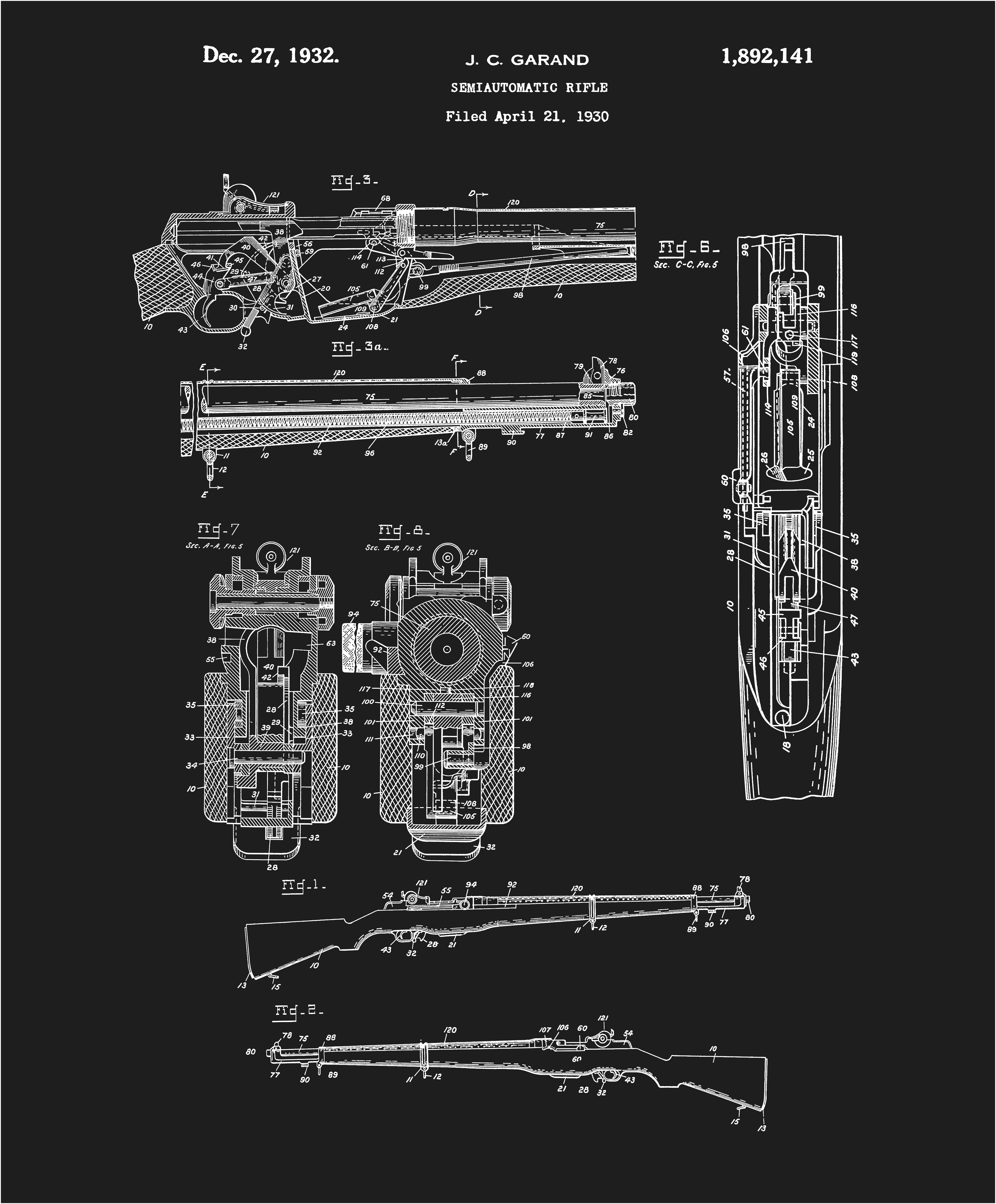
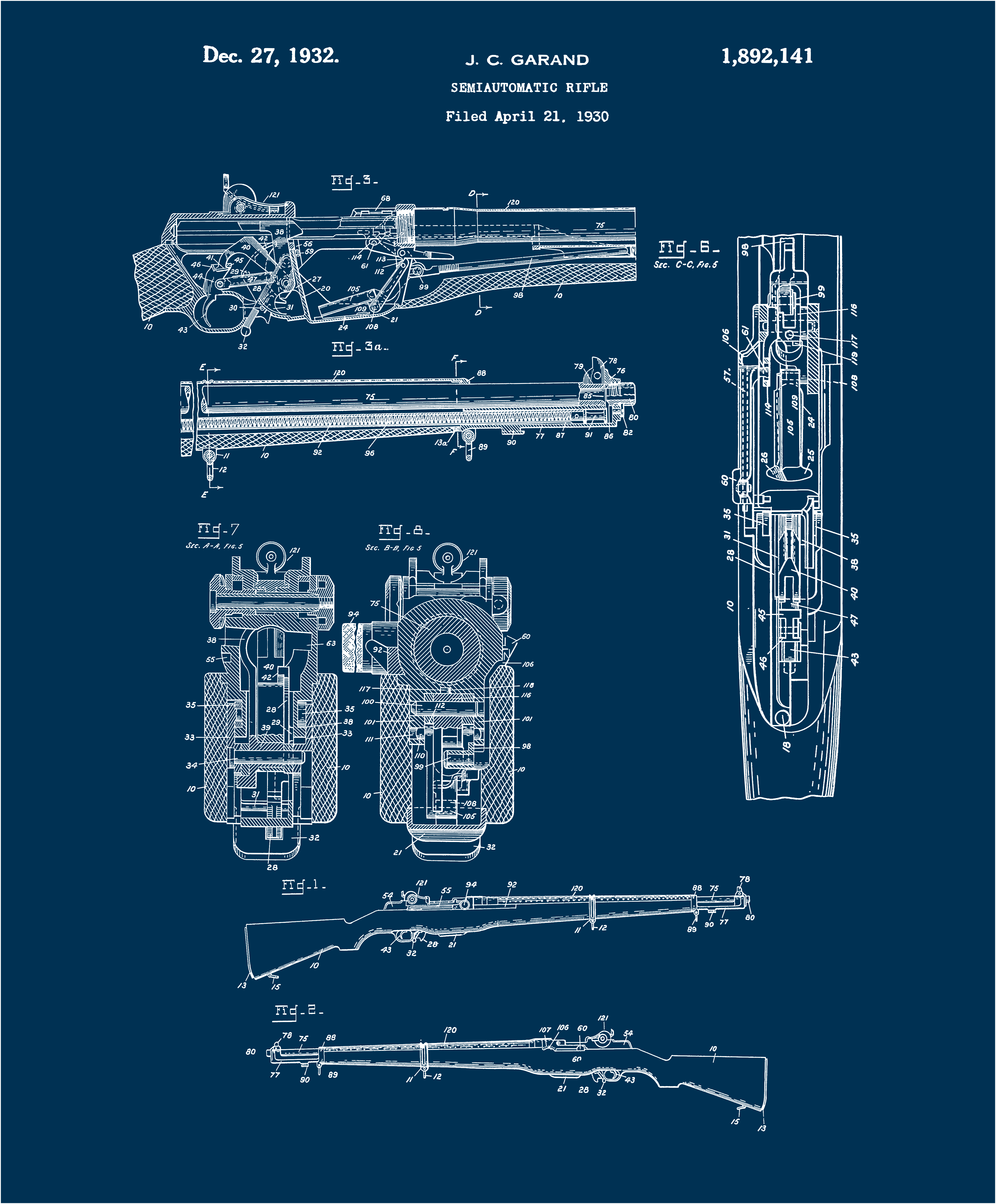
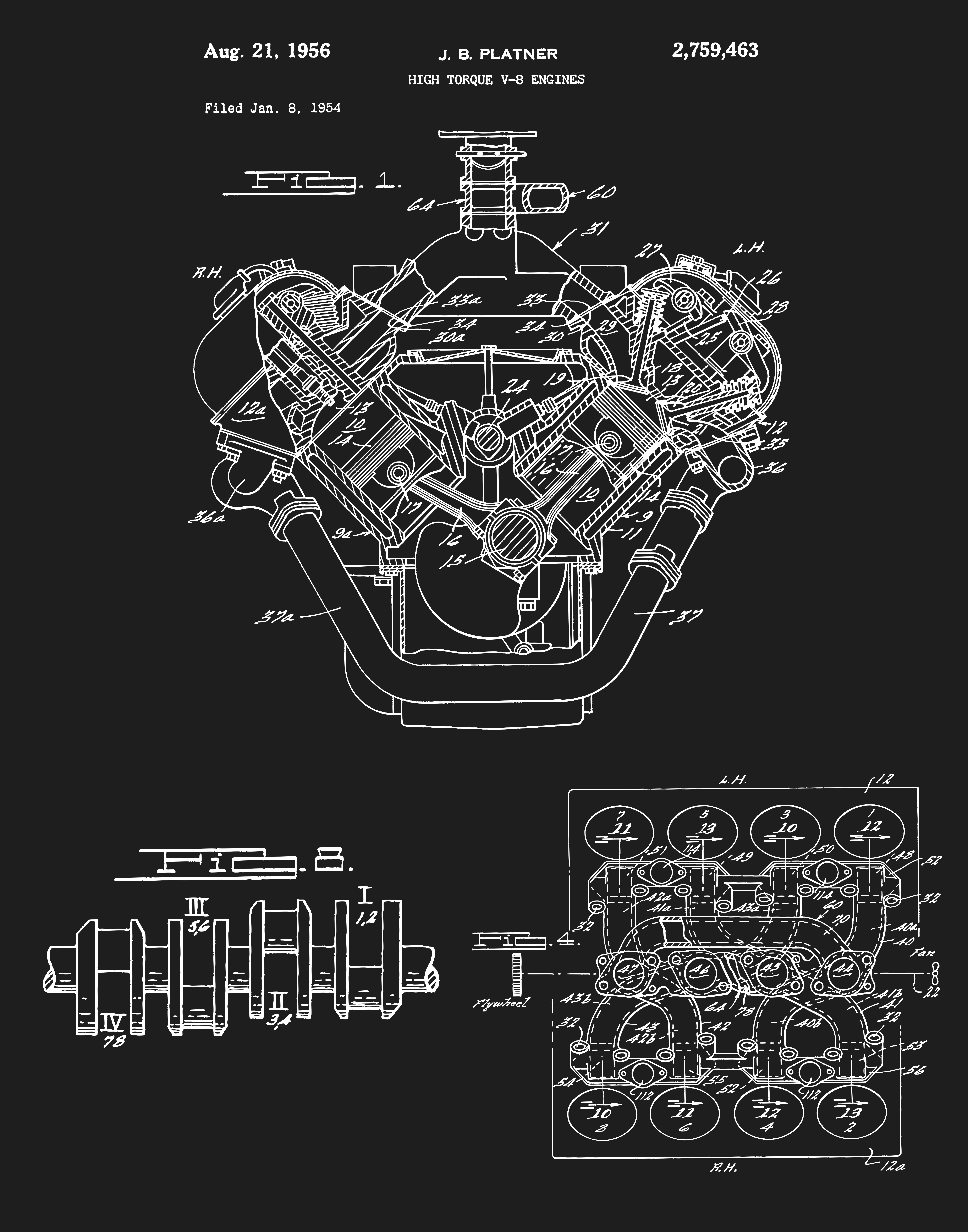
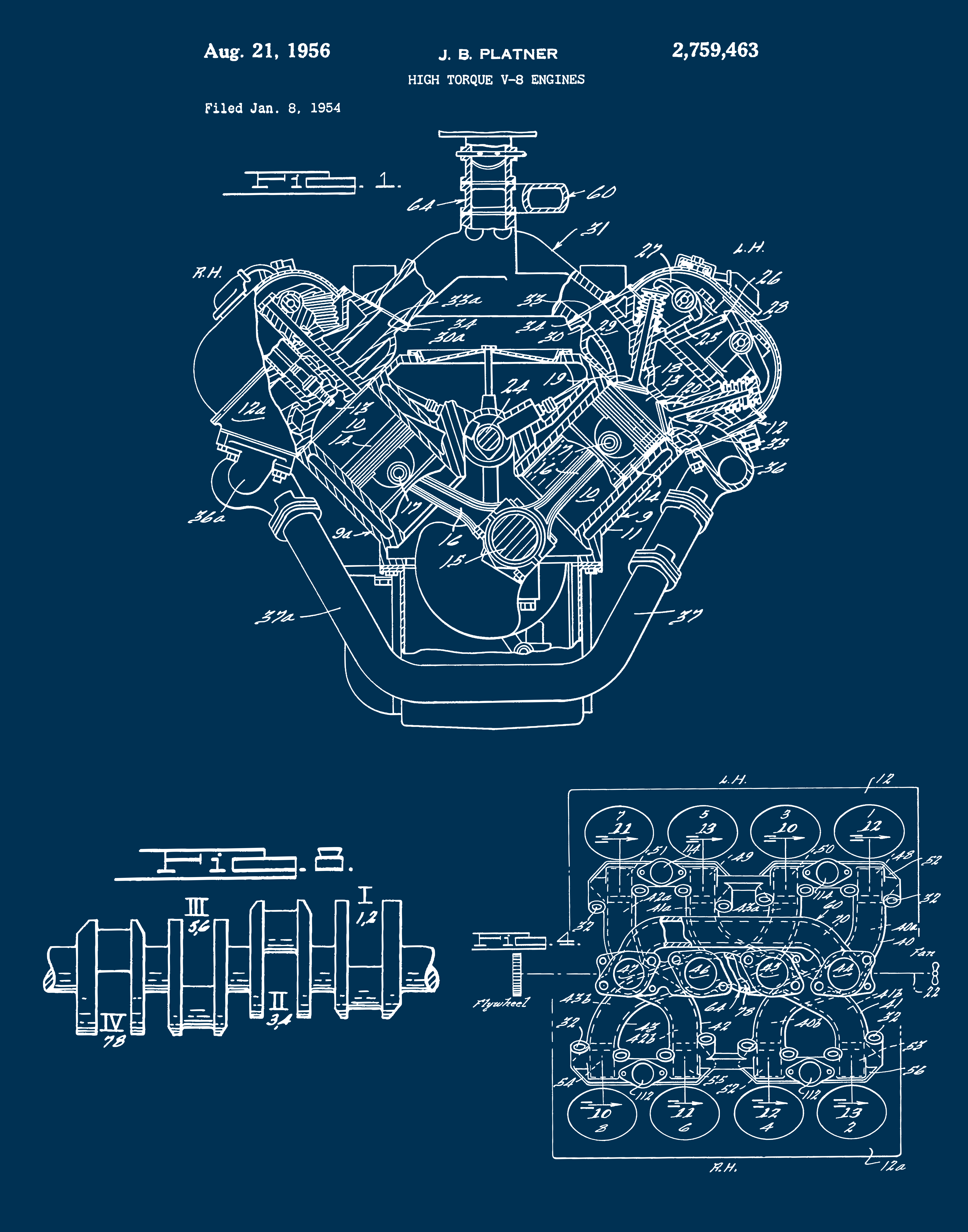
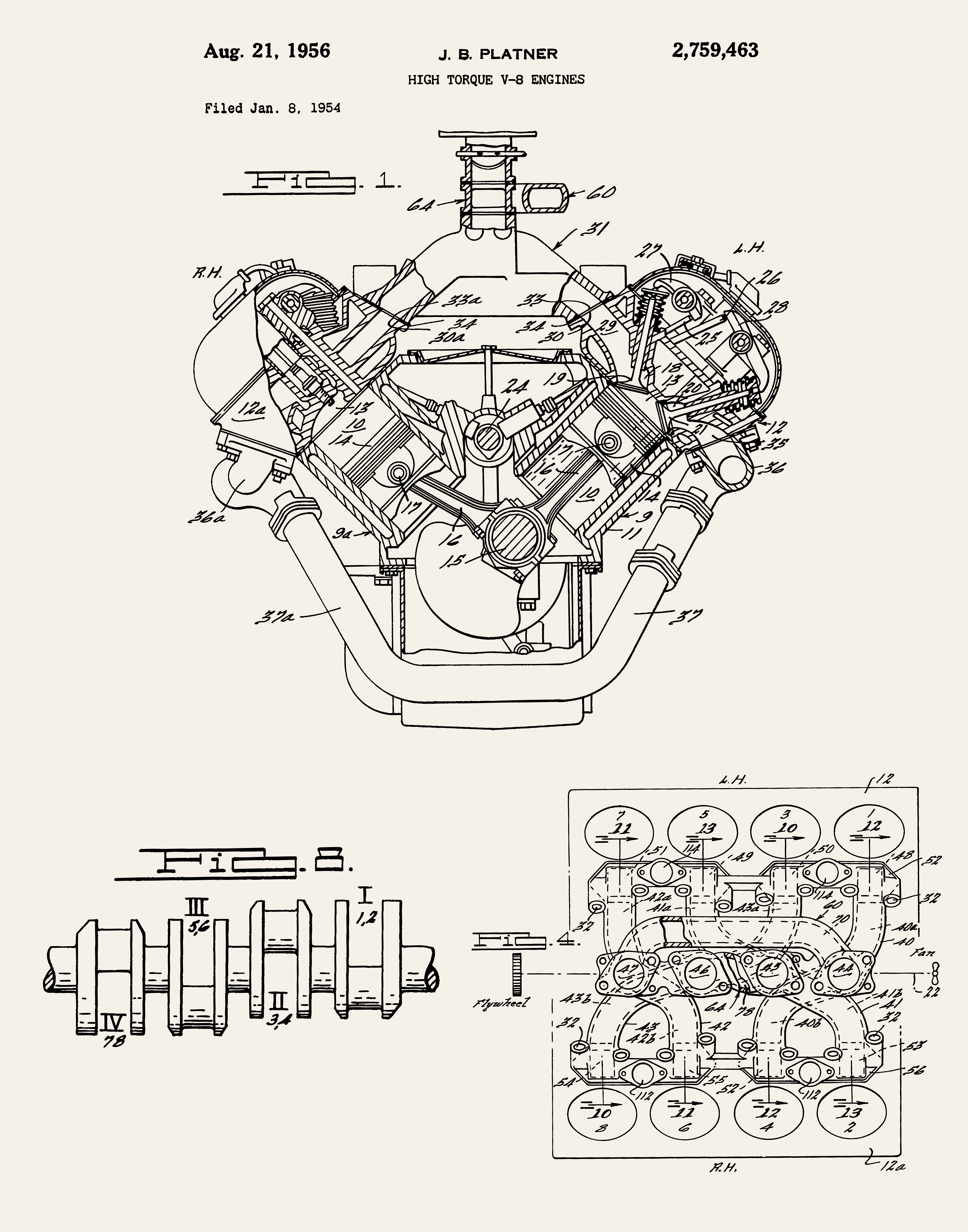
Making Patent Art Posters
Tools:
- Inkscape
- ImageMagick (for the convert command)
My Process
- Find Patent on patents.google.com
- Extract pages as images in tiff format
$ convert -density 300 patent.pdf -quality 100 page_%03d.tiff - Make note of which files have the figures you want
- For each tiff that has figures you want..
- import into Inkscape
Shift + Alt + BorPath > Trace Bitmap- Trace Settings
- Dropdown > Brightness cutoff
- Brightness Threshold: 0.600
- Speckles: 5
- leave everything else as is
- Update then Apply (This will put a vector layer either below or above your current layer)
- Separate the two layers side by side
- press N for the node tool, hover over either image, if red outlines appear, that's the vector you want to keep, delete the other one
- If there are any remaining speckles around where you want to extract a figure from, the node editor, draw a box around the speckle and hit delete
- the following is taken from google to extract the contents of a drawn polygon from the rest of the image:
- Draw your polygon: Use the Bezier Pen Tool (shortcut B) to draw an irregular polygon, or the Stars and Polygons Tool (shortcut *) for regular shapes, directly over the section you want to extract. - Position: Ensure the polygon is on top of your vector object. - Select both: Click the polygon, then hold Shift and click the vector object. - Apply Clip: Go to Object > Clip > Set. - Save as its own vector
- Arrange However you like
This will get you a final working SVG of the poster you want. I did some additional work with the help of an LLM to generate a script that takes in a pair of colors from a file that looks like this:
#003153 #FFFFFF
#1E1E1E #FFFFFF
#F5F0E8 #000000
and spits out a file for each line with the FG and BG colors in each line. You can see the script here
Usage: ./colorize.sh input.svg colors.txt